Setting up R2
From the download link to a desk that trades on its own, with the narrated video.
Watch the setup, step by step (10:18)
The same steps as the guide below, narrated, with the real screens. Read the written guide once through as well: it has the detail the video leaves out.
This guide takes you from the download link to a desk that trades on its own. It assumes you have never seen R2 or NinjaTrader before, so it explains everything, including the obvious parts. Nothing in it requires you to write code or edit a file by hand.
Read it once through before you start. The whole thing takes about half an hour, most of which is waiting for NinjaTrader.
Contents
- What you need before you start
- Download and install R2
- First run and your licence key
- The setup wizard
- Telling R2 about your accounts
- Letting NinjaTrader compile R2's strategies
- Attaching the strategies
- Reading the dashboard
- Alerts on your phone
- Day to day
- Running on a VPS
- Moving R2 to another machine
- When something looks wrong
- Backtesting a strategy yourself - a separate guide
1. What you need before you start
A Windows PC or VPS. Windows 10 or 11. R2 needs no runtime installed - it uses .NET Framework 4.8, which is already part of Windows.
NinjaTrader 8, installed and logged in at least once, with your prop firm's data connection working. R2 does not replace NinjaTrader; it tells NinjaTrader what to do. If you cannot open a chart and see live prices in NinjaTrader, fix that first - R2 cannot help with it.
At least one prop account (an evaluation or a funded account) visible in NinjaTrader's Accounts tab.
A NinjaTrader workspace with a chart in it. A workspace is just NinjaTrader's name for the arrangement of windows you have open, saved under a name. R2 puts its strategies on a chart inside your workspace, so there has to be one - and on a fresh NinjaTrader install there sometimes is not. It takes a minute:
- In NinjaTrader: Workspaces > New Workspace. Give it any name you like.
- New > Chart, pick any instrument, and let it open in that workspace.
- Workspaces > Save As, and save it under the same name.
If you skip this, R2 stops at the attach step and tells you the workspace does not exist. It will not create one for you, because a workspace is your own window layout and R2 does not rearrange your screen without being asked. (The one thing it does repair by itself is a workspace NinjaTrader has emptied - which NinjaTrader does if it is closed with no chart open - because that is a state R2's own restarts can cause.)
Your R2 download link and licence key, which arrive by email when you buy.
A word about what R2 does. R2 chooses which strategy to run on each account, works out how many contracts that account can afford under its firm's rules, writes that into NinjaTrader, and watches it. It does not invent trades and it does not override your firm's limits. Everything it decides, it explains.
2. Download and install R2
-
Open https://dl.threepio.xyz/R2-Setup-latest.exe. It downloads a single file called
R2-Setup-<version>.exe. That link always serves the current version, so it is worth keeping - the same link updates you later. -
Double-click the file.
-
Windows will probably warn you. You will see a blue box saying "Windows protected your PC". This is because R2 is a small independent product and the installer is not yet signed with a paid certificate - it is not a sign that anything is wrong. Click More info, then Run anyway.
-
Follow the installer. The default location is fine. It takes a few seconds.
-
When it finishes, leave Start R2 ticked and click Finish.
R2 installs for you only - it does not need administrator rights and it changes nothing about NinjaTrader until you tell it to.
3. First run and your licence key
R2 opens and, the first time, offers its setup wizard straight away. The wizard's second step asks for your licence key: paste it in, press CHECK THIS KEY to confirm it, then Next. That is the normal way to enter it. The same page shows this machine's id; you only need that if support asks you for it (a key can be issued that works on one machine only).
The wizard will not go past step 2 without a valid key, because everything after it changes what NinjaTrader trades. A key only ever gates setting up. Once your accounts are set up, nothing stops working if the key later lapses or is used elsewhere: R2 keeps managing the accounts it manages and shows a reminder line across the top of the main window instead. Software that downed tools over a licence check would be a worse product than one that occasionally nags.
If R2 ever needs the key again (for example after a reinstall), it asks for it the moment you press something that sets up trading - SETUP WIZARD, an attach, a backtest - and gives you a box to paste into; paste it, press OK, and carry on.
The reminder disappears and the key is recorded against this machine. A key runs on one machine at a time - see Moving R2 to another machine if you need it elsewhere.
4. The setup wizard
The first time R2 runs it offers its setup wizard. If you skipped it, press SETUP WIZARD on the Summary page.
The wizard walks through eleven steps. Every step explains itself on screen in plain words; this is what each one is for, and what it needs from you:
| Step | Title on screen | What happens | What you do |
|---|---|---|---|
| 1 | Welcome to R2 | Tells you what is about to happen | Press Next |
| 2 | Your licence key | Records your key against this machine | Paste the key from your email, press CHECK THIS KEY, then Next. (The page also shows this machine's id: only needed if support asks for it) |
| 3 | NinjaTrader | Checks NinjaTrader is open and logged in, and gets the small piece of R2 that lives inside NinjaTrader ready (R2 presses NinjaTrader's compile button for you) | Log in to NinjaTrader if it asks; otherwise wait for the green line |
| 4 | Your accounts | Lists every account NinjaTrader can see | Tick the ones R2 should manage; untick any you trade by hand |
| 5 | Which prop firm is each account with? | Sets the rule book each account trades under | Pick the firm and plan you bought, per account. If yours is not listed, choose a firm that is not in this list and type its rules in |
| 6 | How much risk on each account? | Sets Low, Medium, Aggressive or Turbo per account | Leave Low unless you have a reason (see section 5) |
| 7 | Strategies | Shows R2's own books and their backtests | Nothing - read it and press Next |
| 8 | The plan | Works out, for every account, which book and how many contracts | Wait. The first plan takes up to an hour and a half on a large desk; the window shows progress and an estimate |
| 9 | Attach and start | Puts the strategies on their charts in NinjaTrader and switches them on | Press Start, then hands off - and log in to NinjaTrader when it asks (see section 7) |
| 10 | Alerts on your phone | Connects Telegram (optional) | Follow section 9, or press Next to skip |
| 11 | You are set up | Done | Press Finish to open the main window |
This is what each step looks like, in order:
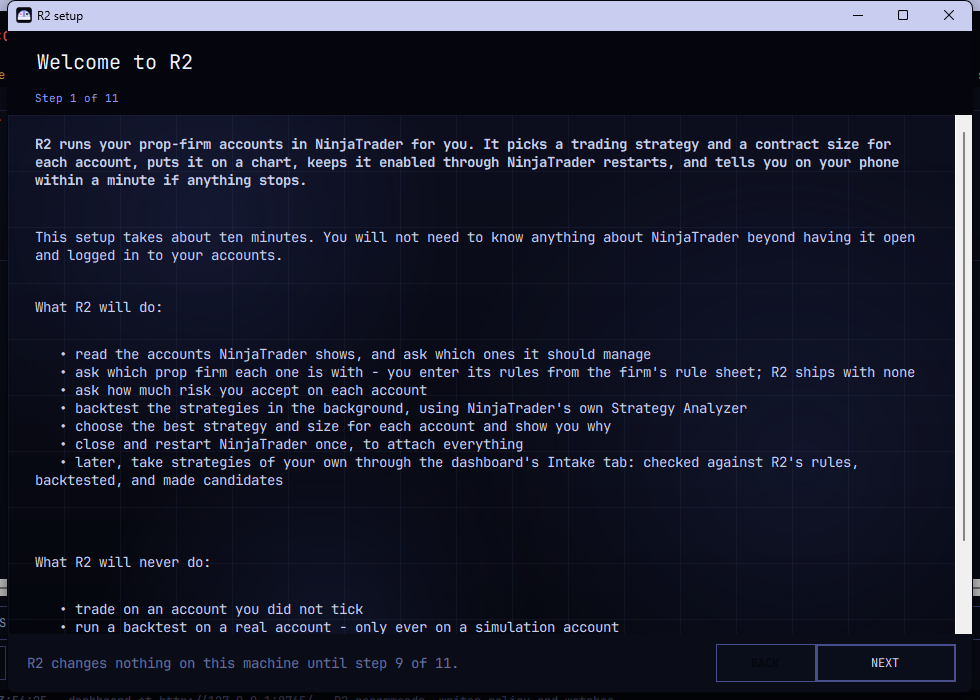
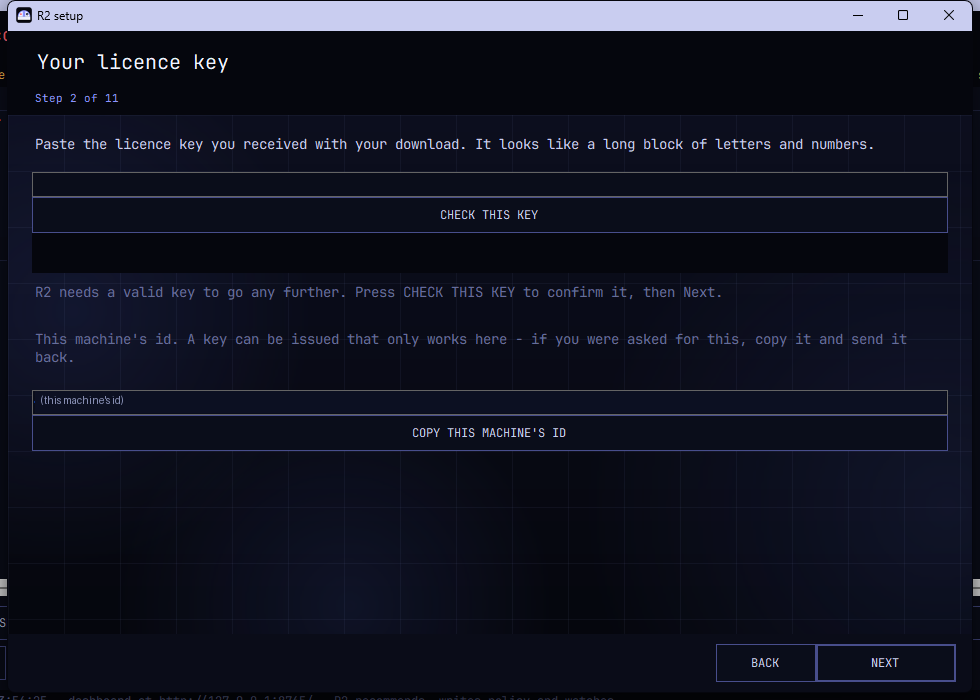
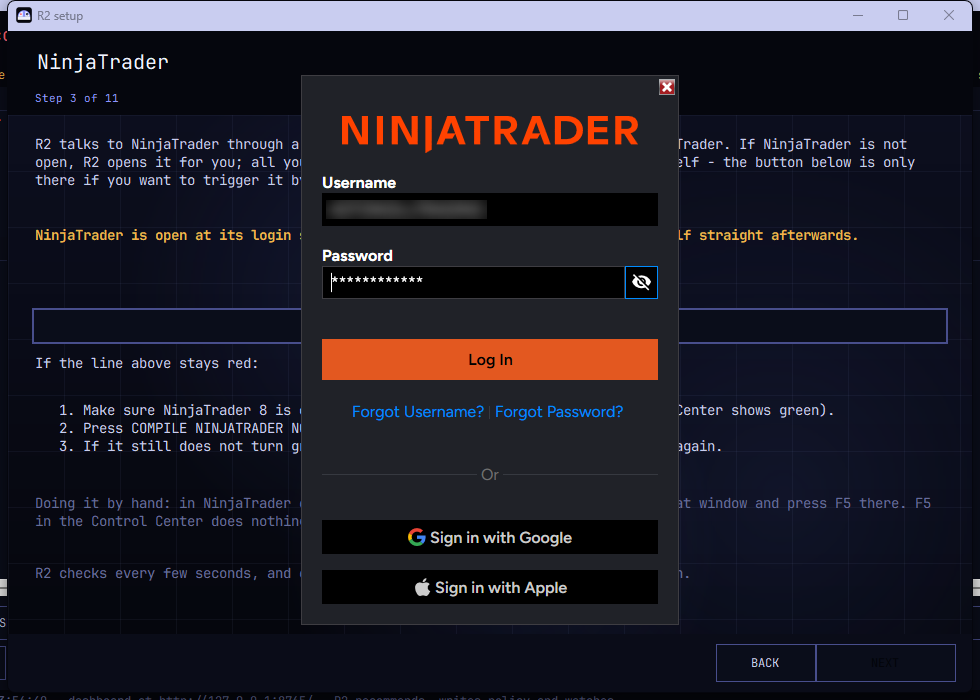
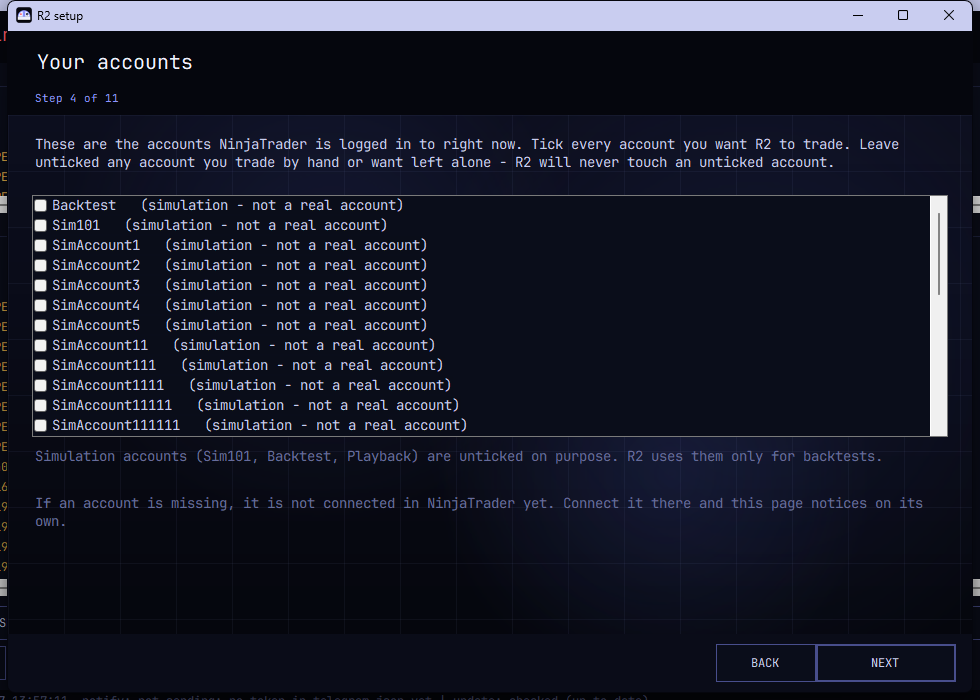
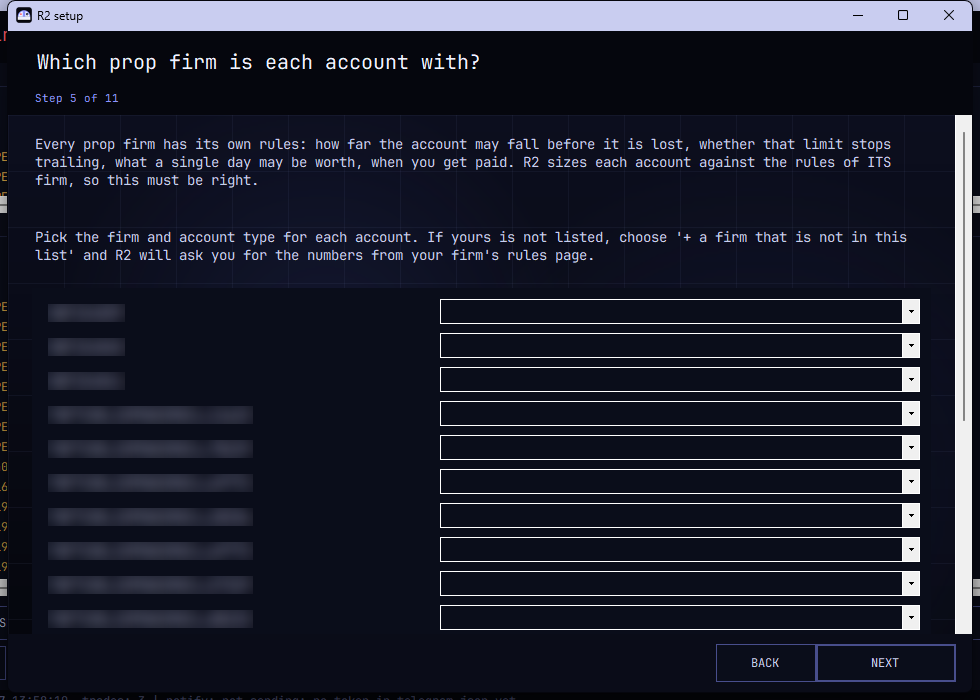
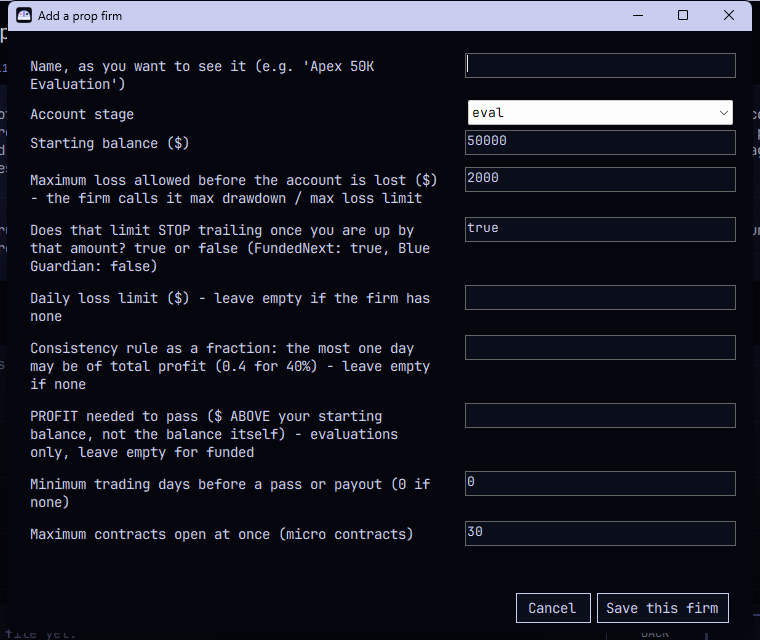
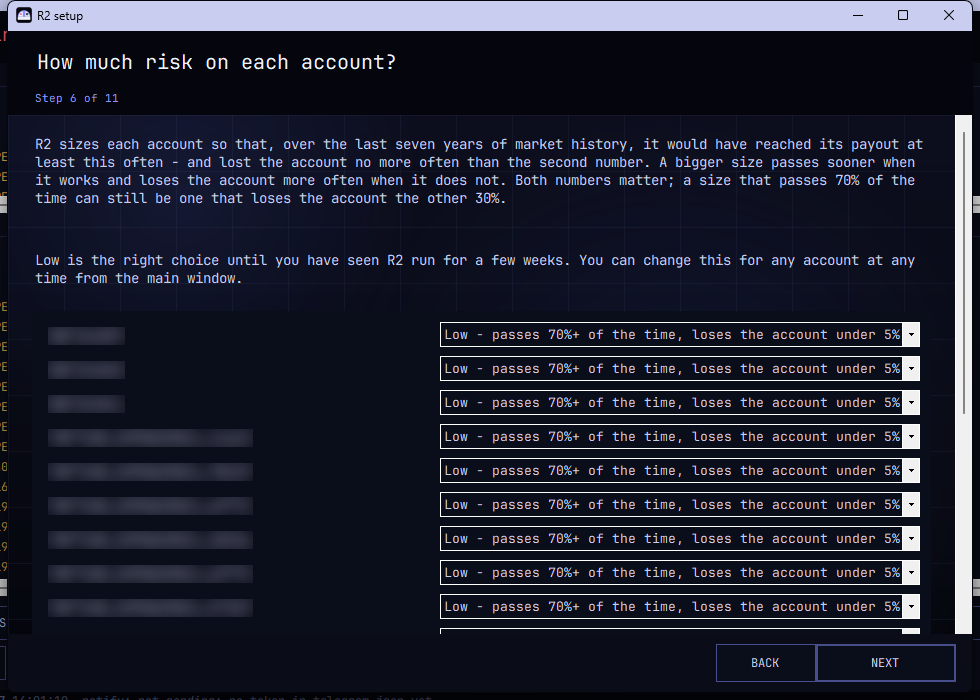
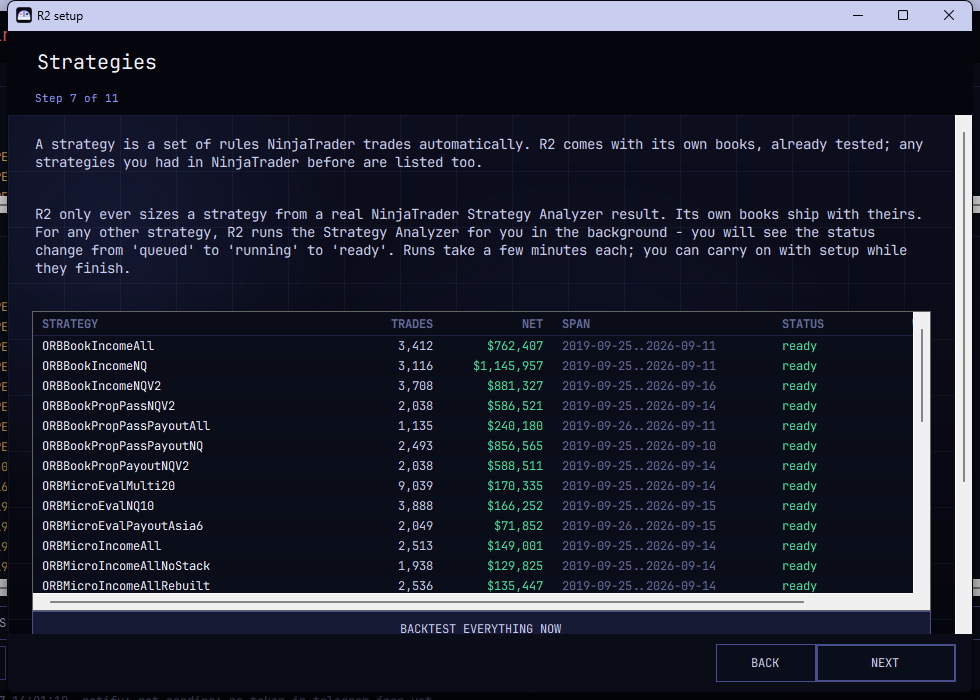
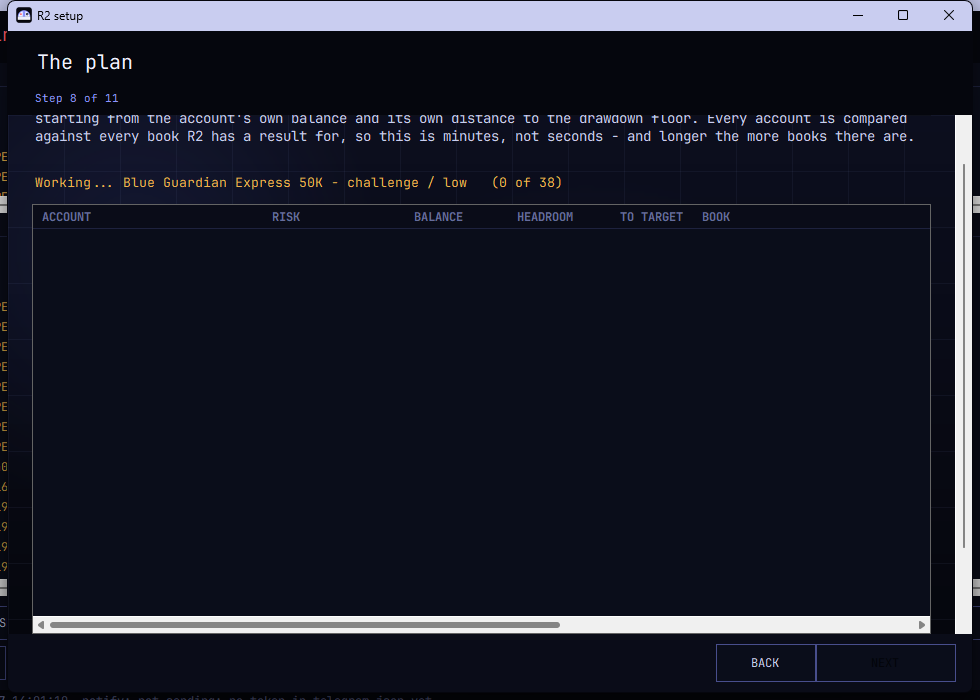
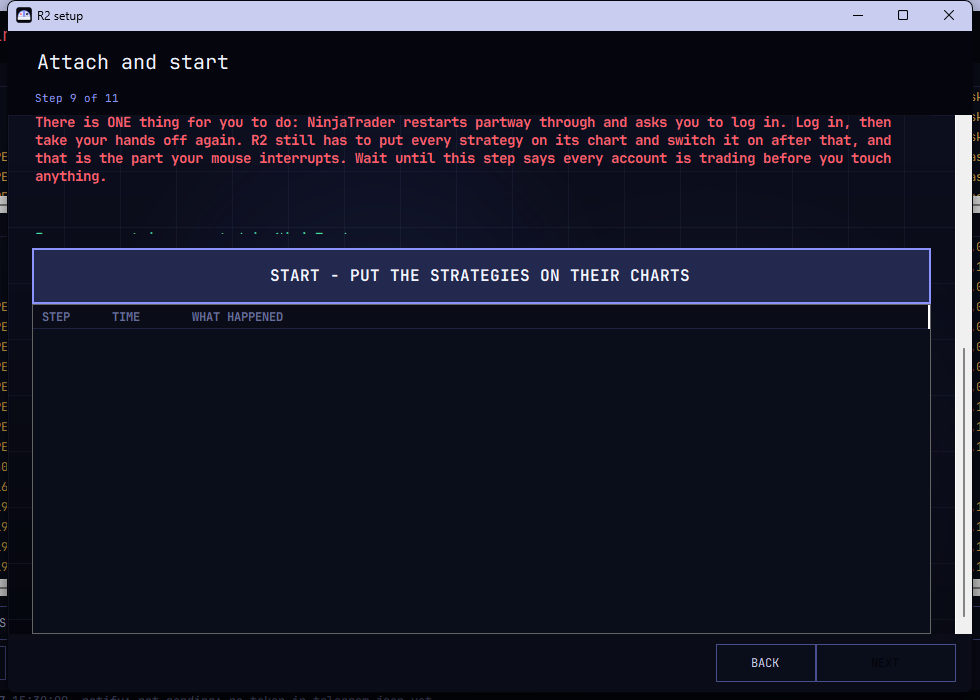
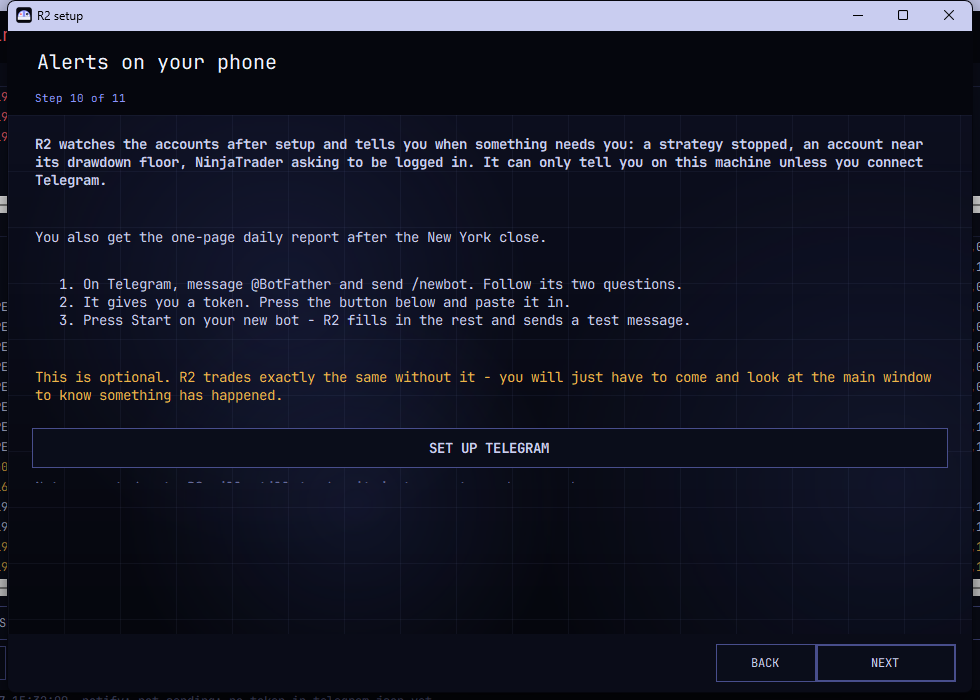
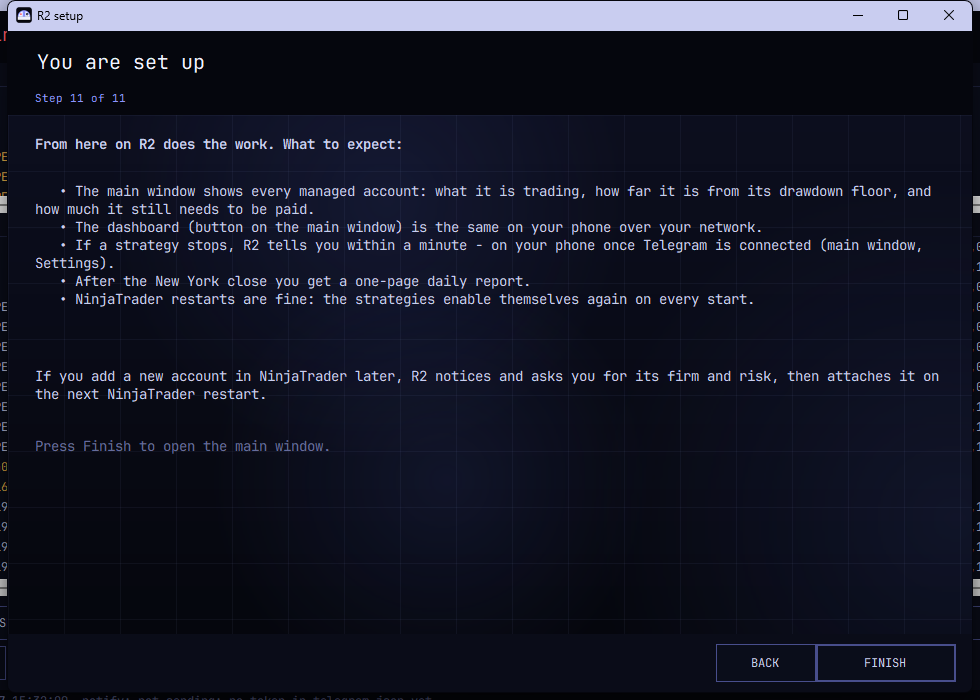
You can leave the wizard at any point and come back; it remembers where you were. Every step can also be re-run later from the main window: SETUP WIZARD opens it at step 1, BACKTEST opens it at the Strategies step, and RE-PLAN redoes the plan.
5. Telling R2 about your accounts
This is the part worth taking slowly, because everything else follows from it.
Open SETTINGS. You will see one row per account NinjaTrader is reporting.
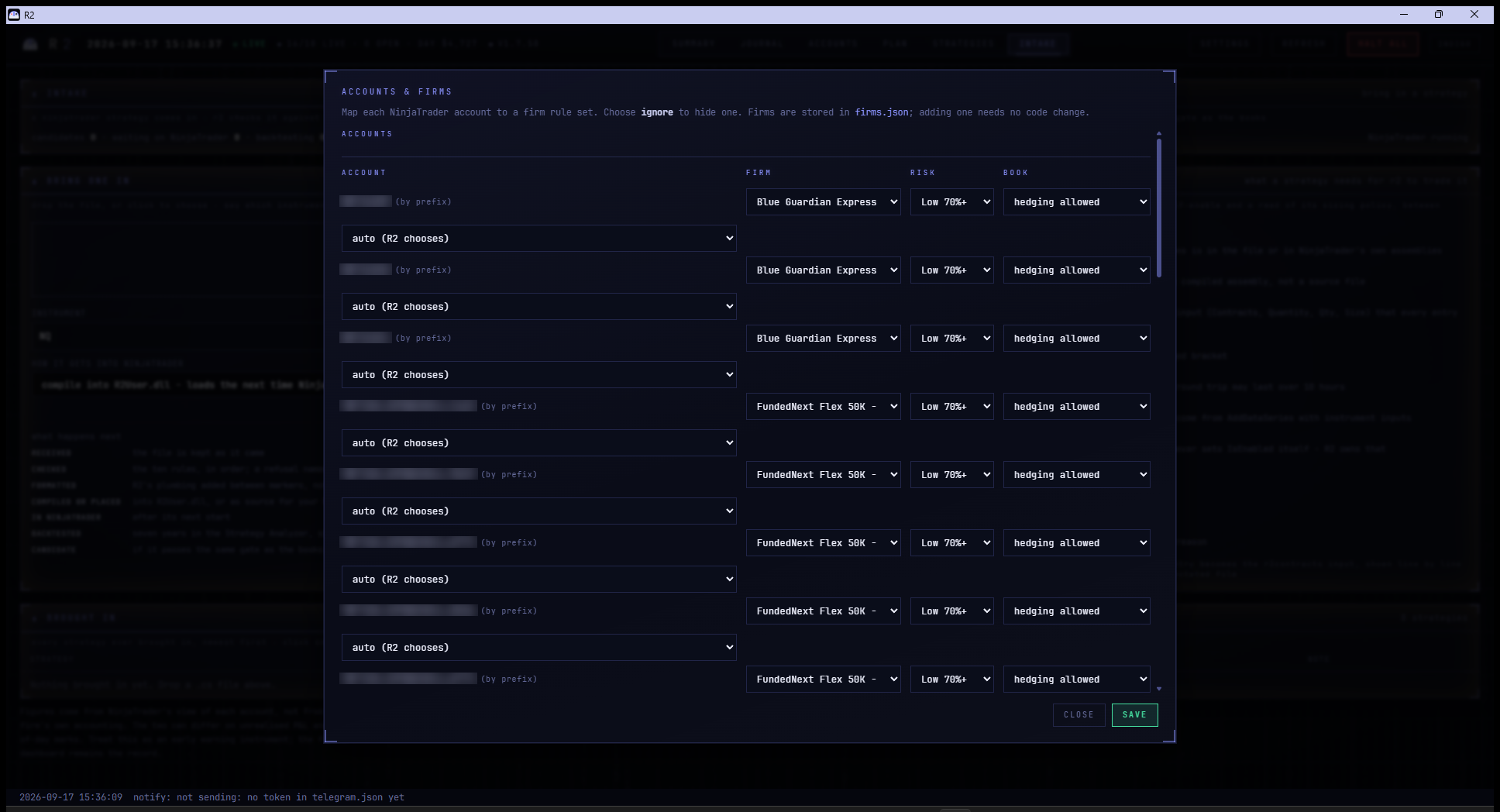
Firm. Each prop firm has its own rules: how much you can lose in a day, how far the account can fall from its high before it is gone, how much profit you need, and whether a single big day can disqualify you. Pick the firm and plan that matches what you bought. If yours is not in the list, add it in the same dialog - R2 ships with no firms at all so that nobody inherits somebody else's assumptions.
Set an account to ignore and R2 leaves it completely alone. Those accounts still appear on the dashboard, at the bottom, marked set aside - so a dashboard with everything ignored does not look like a dashboard with no accounts.
Risk. This is the pass rate you are willing to accept, and it decides how big R2 sizes you:
| passes | loses the account | |
|---|---|---|
| Low | 70%+ of the time | under 5% |
| Medium | 60%+ | under 15% |
| Aggressive | 50%+ | under 30% |
| Turbo | 30%+ | up to 50% |
Turbo is the fastest and it is priced accordingly: on turbo an account is about as likely to be lost as passed. On an evaluation that costs the fee. On a funded account it costs the funded account. R2 asks you to confirm before it sets it.
Book. Leave this on auto unless you have a reason not to. On auto, R2 re-picks the strategy as the account's balance, headroom and days traded change. Pin one and it stays.
Press SAVE.
6. Letting NinjaTrader compile R2's strategies
R2's strategies have to be compiled by NinjaTrader before they can run. R2 can press the button for you:
- On the Summary page, press COMPILE NT8.
- NinjaTrader flashes and takes a few seconds.
If you would rather do it yourself, it has to be the NinjaScript Editor, not the Control Center - F5 in the Control Center does nothing at all:
- In NinjaTrader, click New -> NinjaScript Editor.
- Press F5.
- Close the editor when it finishes.
Either way the running strategies stop for a few seconds while NinjaTrader compiles, and R2 switches them back on by itself. R2 leaves the NinjaScript Editor open so you can see the result; you can close it whenever you like.
You will rarely need this button: the setup wizard compiles at step 3, and R2 compiles by itself at the New York close whenever something new has arrived.
7. Attaching the strategies
"Attaching" means putting a strategy on each account inside NinjaTrader, with the contract sizes R2 worked out.
Before you press anything, connect every account in NinjaTrader. This matters more than anything else on this page. NinjaTrader binds a strategy to its account at the moment it loads the strategy, so an account that is not connected then has nothing to bind to: its row comes up with a blank Connection column and an Enabled box that will not tick - not for R2, and not for you clicking it by hand. R2 will not let you start until they are all connected, and it names any that are not.
The first attach is step 9 of the wizard: press Start. Later on, whenever something needs attaching again (a new account, a changed book, a contract roll), a notice appears at the top of the Summary page with an Attach now button, and R2 messages your phone. The same job is behind the ATTACH PLAN button in the action strip on the Summary page. When you press Attach now on the dashboard, a box appears asking you to type the word ATTACH and press CONFIRM - a stray click can never restart NinjaTrader. Read the confirmation carefully, because this step is disruptive:
- NinjaTrader closes and restarts. Anything you have open in it will be reopened from your workspace, but anything unsaved is lost. R2 answers NinjaTrader's own "save the workspace?" question for you.
- You will have to log in to NinjaTrader again. NinjaTrader asks for your username and password on every start - it has no "remember me" - and R2 will never type them for you. R2 waits at this point for as long as it takes; nothing is lost by taking a minute.
- Hands off once you press the button. R2 works NinjaTrader's own windows the way you would, by bringing them to the front and clicking them. If you move the mouse or type while it is doing that, it stops and tells you, and carries on when you leave it alone.
- Every account R2 manages must be flat. R2 refuses to start while any of them holds a position or has working orders, or while NinjaTrader's position report is more than two minutes old, and names the accounts. A position open across the restart would come back with nothing managing it, because each book waits for its account to be flat. Close them, or wait until they are flat, and press the button again. Nothing has been touched when it refuses.
- It takes two to four minutes.
When it finishes R2 says so in the wizard's log - every strategy is on and trading - and every managed account shows trading on the dashboard. If it could not finish, it says why instead of going quiet, and names the accounts involved.
If NinjaTrader restarts a second time, that is R2, not a fault. Two things make it do so, and it tells you which in its log:
- NinjaTrader closed by itself on the way up (it can, when your broker's connection is slow that morning). R2 starts it again.
- NinjaTrader loaded the strategies before their accounts were ready, so none of them could be switched on. Clicking cannot fix that; a restart can, so R2 restarts it once more.
Either way you log in again when NinjaTrader asks, and R2 carries on by itself.
If one account still will not start after that, and its connection looks fine, look at the Connection column beside it in NinjaTrader's Strategies tab. If that cell is blank, disconnect that one account under NinjaTrader's Connections menu and connect it again. R2 keeps trying in the background and will switch the book on by itself once you have.
R2 will not attach while you are away. A restart needs you to log in, so an attach only ever runs when you start it. When something needs attaching R2 tells you (on the dashboard and on your phone) and waits for you to press the button. The one time R2 restarts NinjaTrader by itself is when NinjaTrader has hung - stopped answering with its heartbeat gone stale - and then at most once an hour, with an urgent alert that says whether positions were open.
8. Reading the dashboard
R2's window is the dashboard. It is also at http://127.0.0.1:8765/ in a browser on the same
machine, if you prefer a bigger window.
Summary
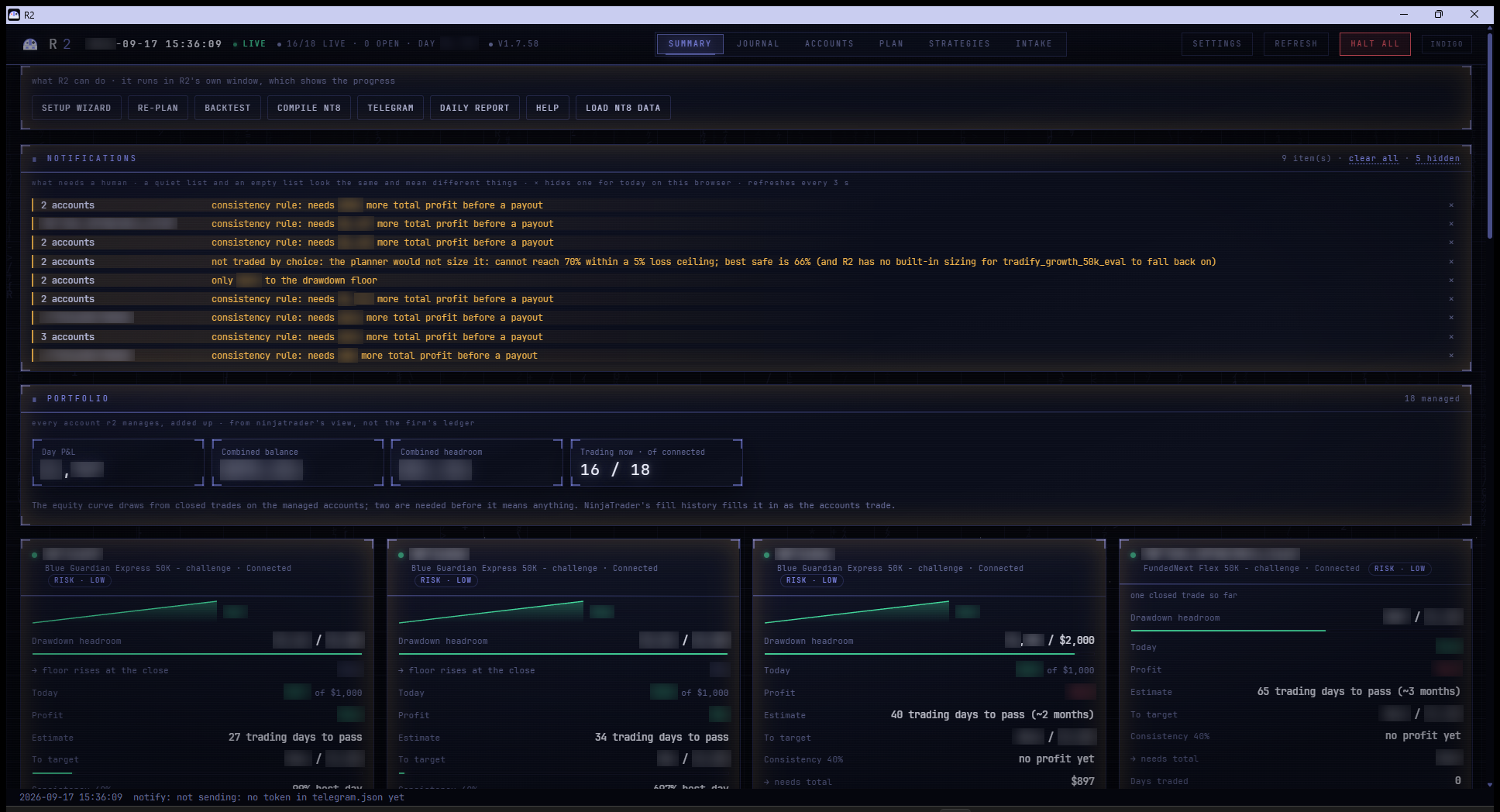
- What R2 can do - the strip of buttons under the header. Everything R2 can be asked to do is here.
- Notifications - what needs a human. A quiet list and an empty list look the same and mean different things, so R2 says which. Press × to hide one until it changes or the day rolls.
- Portfolio - every managed account added up, and the combined equity curve from your actual fills.
- One card per account below that. Accounts R2 leaves alone come last.
Each card shows the drawdown headroom, today's P&L, the profit so far, and an estimate of how long until the account passes (or can be paid). That estimate is in trading days and it accounts for how often the chosen book actually trades - a book that trades one day in four takes four times as long as its raw numbers suggest, and the card says so.
Accounts
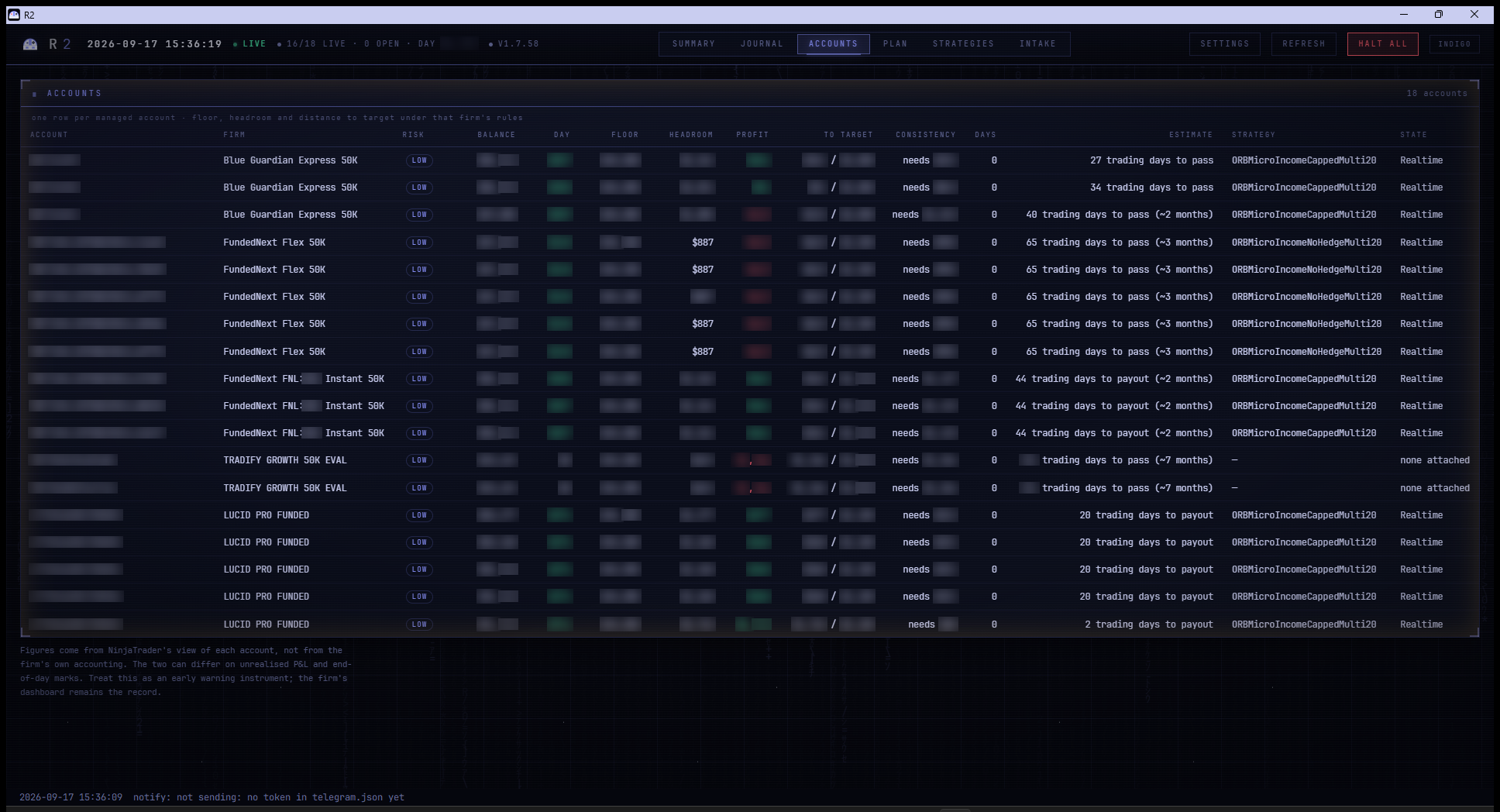
The same information as a table, one row per account, sortable.
Plan
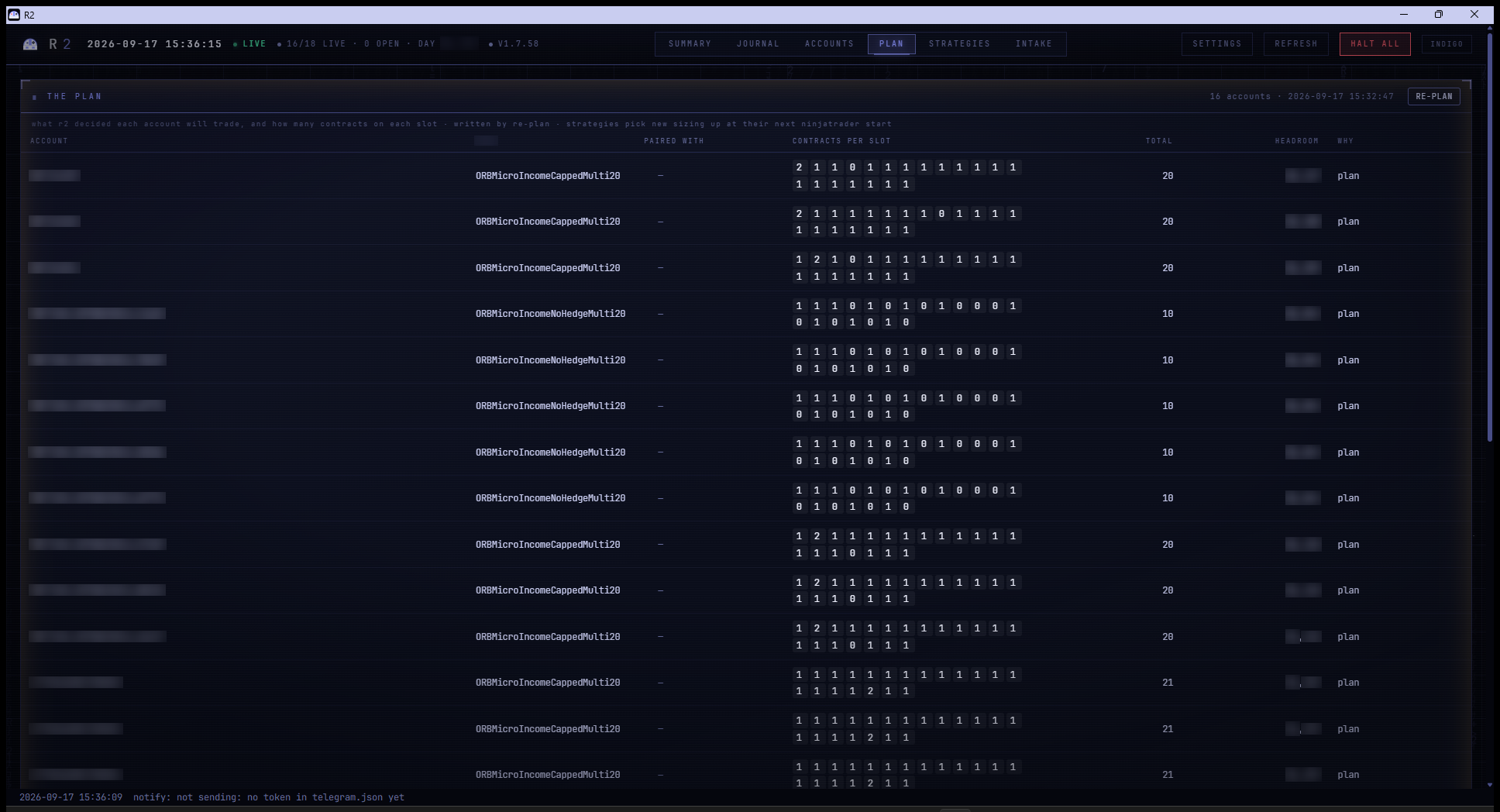
What R2 decided for every account: which book, how many contracts, the pass chance, the typical days to pass and the chance of losing the account, all from the backtests. Accounts R2 decided not to trade are listed underneath with the reason in plain words - usually that no size could reach the firm's target within the loss limit your risk level allows. That is a choice, not a fault: nothing is waiting to be attached for those accounts. Raising the risk level in Settings and pressing RE-PLAN is how you change it.
Strategies
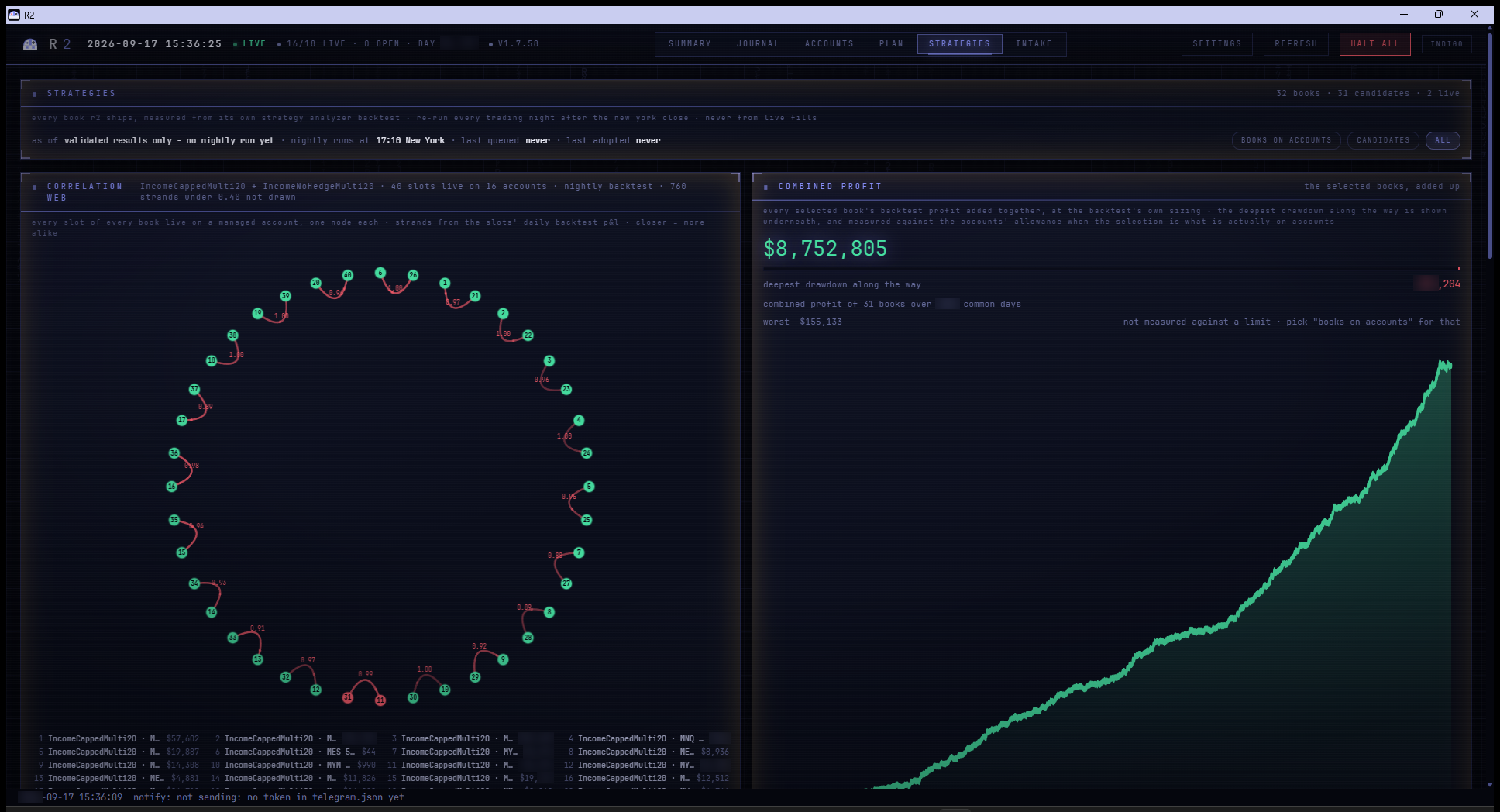
Every book R2 ships, measured from its own Strategy Analyzer backtest - never from a guess. The chips at the top narrow the list to the books on your accounts, to the candidates, or all of them. Click a book for its own mini-journal.
Journal
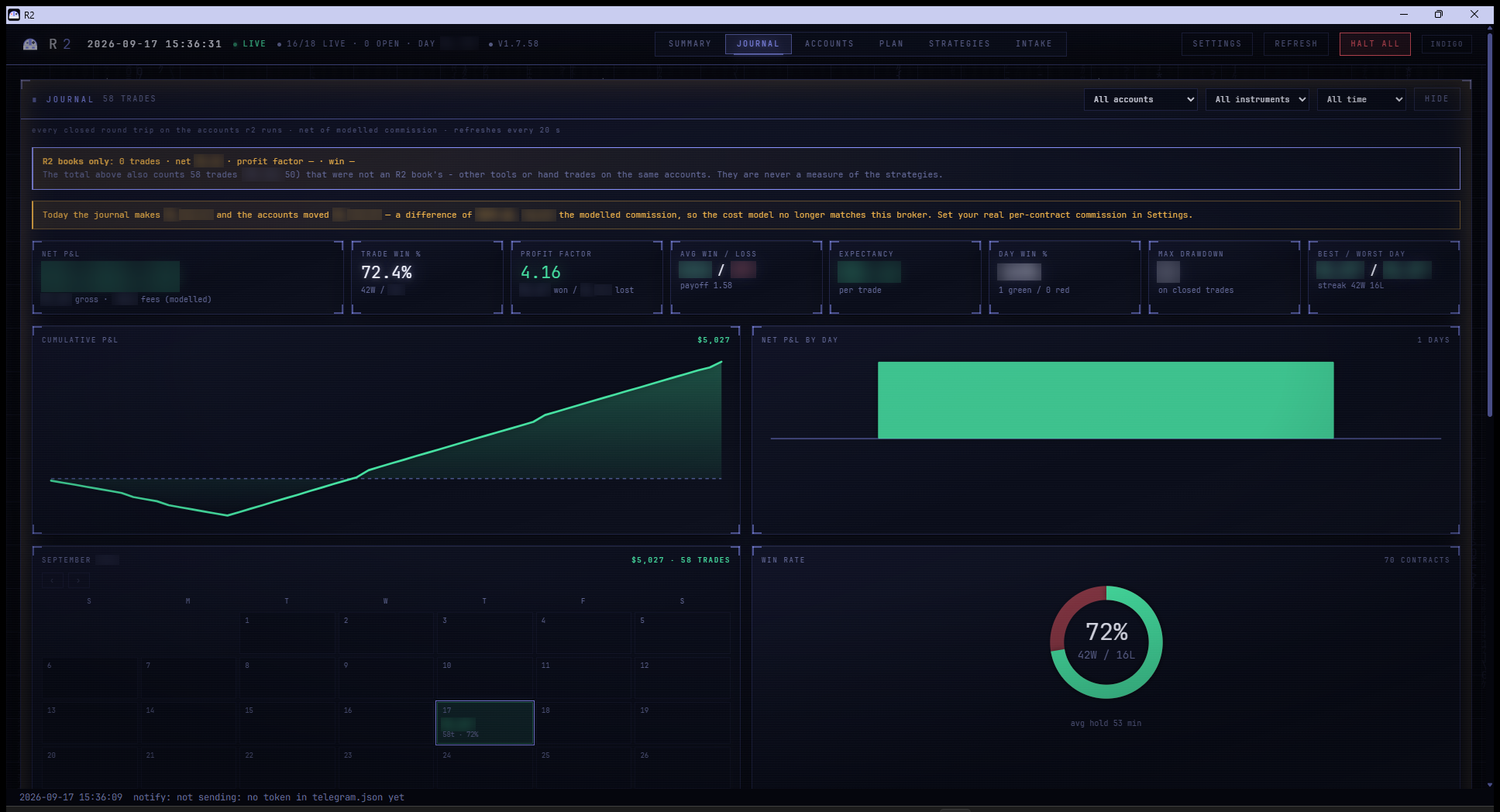
Every closed round trip on your accounts, from NinjaTrader's own fills. This is what actually happened, not what a backtest thinks should have.
Intake
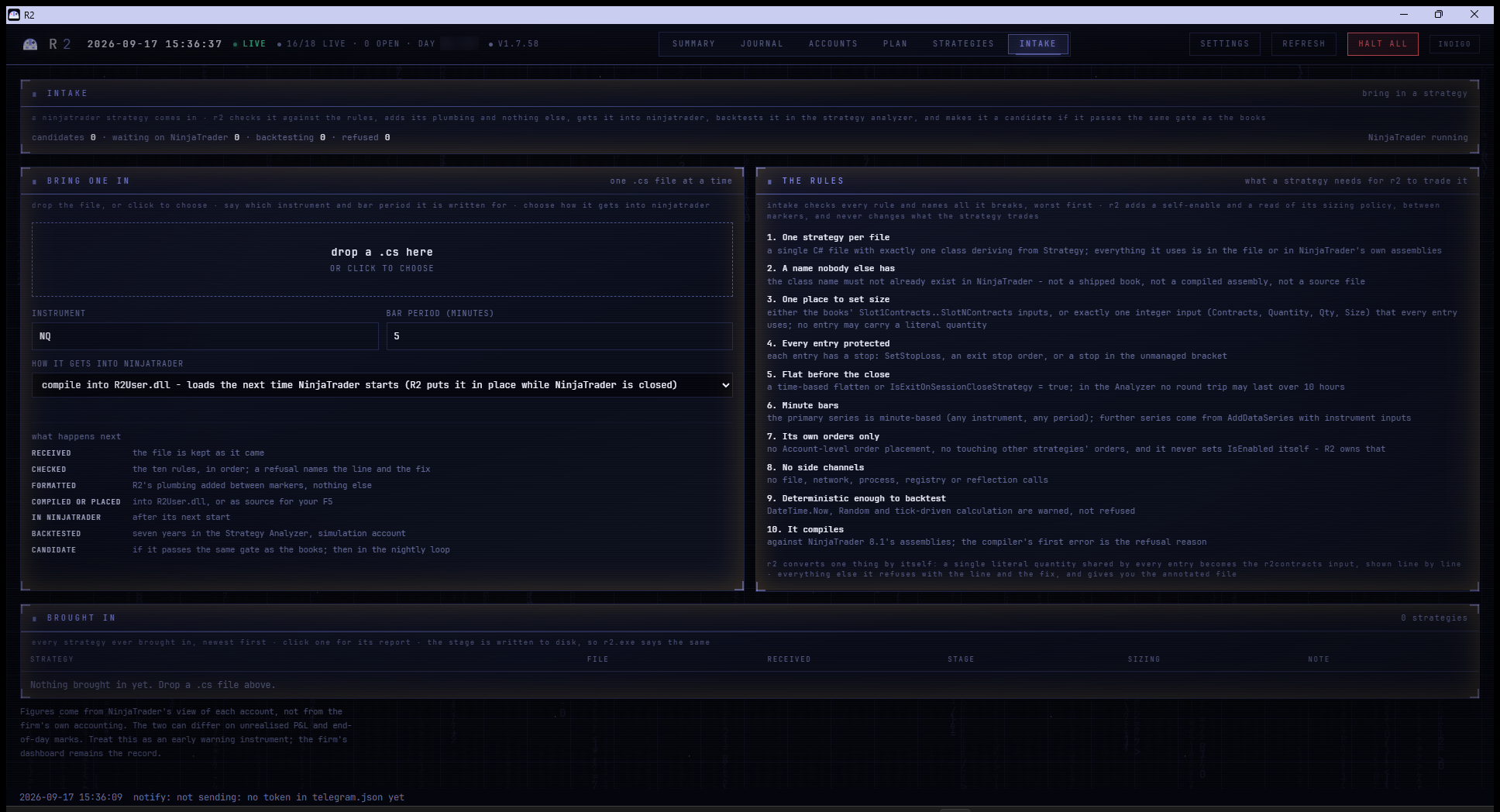
R2 backtests every book for you - press BACKTEST on the Summary page. If you want to run one yourself in NinjaTrader's Strategy Analyzer, every setting is written out in Backtesting a strategy yourself.
Drop your own NinjaTrader strategy here and R2 will check it against its rules, add the
plumbing it needs, compile it and backtest it. See R2_STRATEGY_RULES.md for what a strategy
must do to be tradeable by R2.
9. Alerts on your phone
R2 can message you on Telegram when something needs you, when a trade opens or closes, every morning before the open, and after the close.
The setup wizard asks for this at step 10, so you may already have done it. If you skipped it, or you want to change it, do it here - it is the same dialog either way.
- On your phone, open Telegram and search for @BotFather.
- Send it
/newbotand answer its two questions (a name, then a username ending in bot). It replies with a long token that looks like1234567890:AAF.... - Open your new bot in Telegram and press Start. If you have already opened it before, just send it any message - "hi" will do. R2 finds your phone from that message, so this comes before the next step.
- On the Summary page press TELEGRAM, paste the token into the box, and press Connect. It says which bot it found and that it reaches your chat.
- Press Send a test message and check your phone.
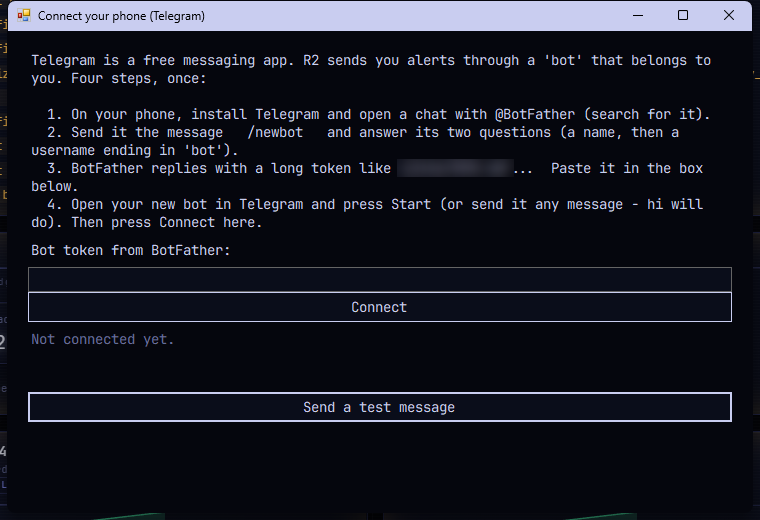
R2 never shows the token again and never sends it anywhere but to Telegram. If you reinstall R2 or press Connect a second time, it keeps the phone it already knows and sends you a line to prove it - you do not have to message the bot again.
You will then get:
- Trades - one message per signal, not one per account. Eight accounts taking the same trade is one message with the split underneath.
- A morning check at 09:00 New York, half an hour before the open: accounts connected, books running, contract months correct, R2 alive, NinjaTrader reporting.
- An end-of-day report after the close.
- Anything wrong, when it is wrong.
10. Day to day
Most days you do nothing. R2 watches the accounts, keeps the books running, and tells you when something needs a person.
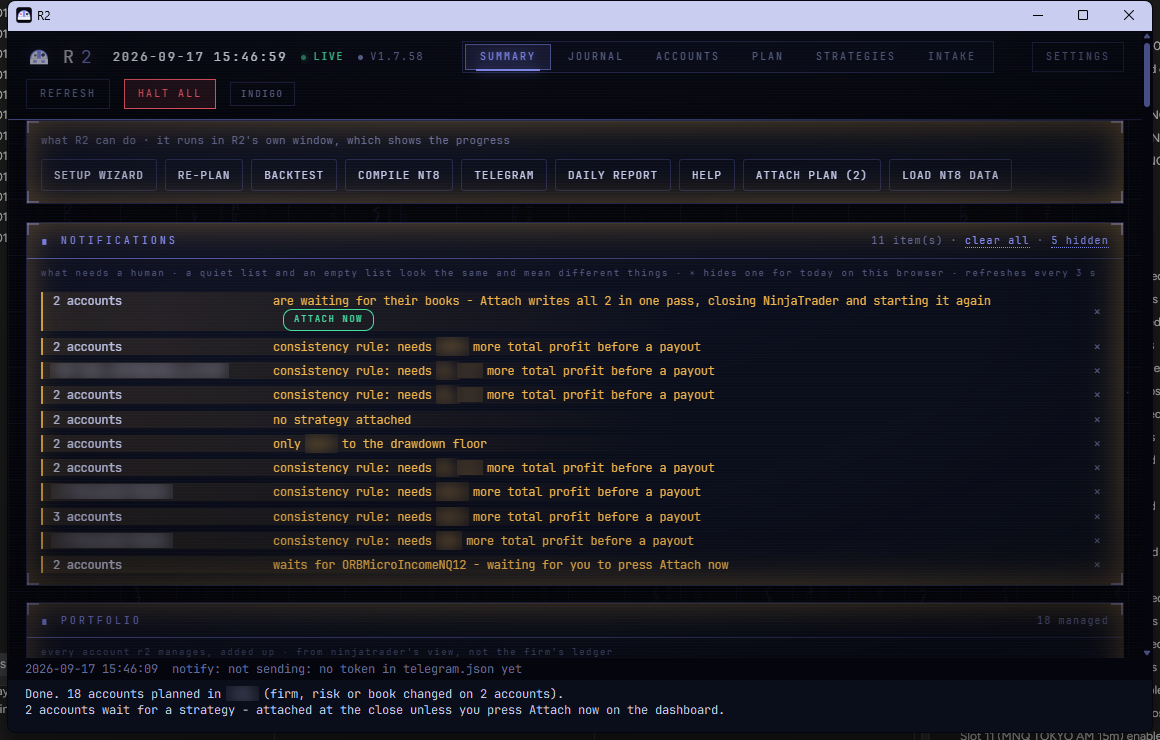
The things that will ask for you:
- An attach - a new account, a changed book, or a contract roll. R2 asks; you press the button when you are ready.
- A NinjaTrader login after any restart.
- A compile, if you add a strategy through Intake.
Changing an account's risk (or firm, or book)
- Open SETTINGS on the dashboard.
- On that account's row, change the risk level (or the firm, or pin a book). Press SAVE.
- Do nothing else. Within a minute R2 notices what changed and re-plans only the accounts you changed - every other account keeps its book and size exactly as it was. The main window shows the progress ("started by itself: risk changed on 2 accounts") and it takes a few minutes, not the half hour a full plan takes.
- If the new plan gives the account a book it does not have yet, a notice appears with Attach now (and a message reaches your phone). Press it when you are ready for NinjaTrader to restart, type ATTACH in the box, press CONFIRM, and log in when NinjaTrader asks.
- If R2 still decides not to trade the account, the Plan page says why in plain words.
RE-PLAN on the Summary page (or Re-plan and write policy in R2's own window) is different: it re-plans every account against the latest backtests, which takes about half an hour on a large desk. It is safe - an account keeps its current book unless a challenger is worth at least 15% more per session - but it is the button for "look at everything again", not for "I changed one account".
Adding a new account
- Add the account in NinjaTrader as usual, so it appears in NinjaTrader's Accounts tab and is connected.
- Within a minute R2 notices an account it has no decision about and asks: "NinjaTrader is showing an account R2 has not seen before. Should R2 manage it?" Press Manage it (or Leave it alone, and R2 never touches it - you can change your mind later in Settings).
- The setup wizard opens at the accounts step with the new account ticked. Press Next, pick its firm and its risk level, and press Next through to the plan. R2 plans only the new account; the others are left as they are.
- At the Attach and start step press Start - or, if now is a bad time, close the wizard and press Attach now on the notice later. Either way NinjaTrader restarts, you log in, and the new account's book goes on. Everything already trading comes back exactly as it was.
R2 never attaches on its own, even at the close: an attach restarts NinjaTrader, and only a person can log NinjaTrader back in. If something is left waiting, R2 reminds you once a day.
10a. Shutting down and starting up
The order matters, and getting it wrong is the most common way to end up with R2 and NinjaTrader disagreeing about what is running.
To shut down:
- Close R2 first. R2 watches NinjaTrader and switches strategies back on when it sees them stop. If NinjaTrader goes first, R2 spends the next minute trying to revive strategies on a platform that is closing underneath it.
- Then close NinjaTrader. If it asks whether to save the workspace, say yes.
To start up:
- Open NinjaTrader first, and log in. Wait until the bottom left of its Control Center shows green, and your accounts have appeared in the Accounts tab. This usually takes thirty seconds or so.
- Then open R2. It reads what NinjaTrader is reporting, so it wants NinjaTrader already there and connected.
Never close NinjaTrader while it is sitting at its login window. A logged-out NinjaTrader does not know about your charts yet, and closing it there can save an empty workspace over your real one. If you find it at the login box, either log in or leave it alone.
If R2 says a strategy "has not reported" for several minutes, the usual cause is that NinjaTrader is at its login window. NinjaTrader has no "remember me", so every restart needs a person to log in - nothing starts trading until someone does.
Updates come to you. R2 checks once a day for a new version. When there is one, a notice appears on the Summary page with what changed and an Update now button. Press it: R2 downloads the update, checks every file against its signature, restarts itself, and comes back on the new version in about half a minute. NinjaTrader is never closed for an update - the parts that live inside NinjaTrader are put in place the next time NinjaTrader is closed, and the notice tells you it is waiting for that. You can also simply run the newer installer over the top; the result is the same.
11. Running on a VPS
R2 is built to run unattended, and it mostly can:
- it starts itself when Windows logs in;
- a watchdog restarts it within two minutes if it ever stops;
- it messages you if it had to.
Two things you must do yourself, once:
- Turn on Windows auto-logon so a reboot gets as far as a desktop. Press
Win+R, typenetplwiz, untick "Users must enter a user name and password", and enter the password when asked. R2 will not do this: it would have to hold your Windows password. - Log in to NinjaTrader after any reboot. There is no way around this - NinjaTrader has no auto sign-in.
R2's morning check tells you if either is outstanding, in time to fix it before the open.
12. Moving R2 to another machine
A licence key runs on one machine at a time. R2 checks in with the issuer's registry, which records which machine holds each key.
To move it, install R2 on the new machine and enter the same key. If the registry still lists your old machine as the holder, R2 tells you so in plain words and names it; email support with your key and the registry is moved for you. Close R2 on the old machine once the new one is running.
A key that is held elsewhere, or has lapsed, never stops a desk that is already trading: R2 keeps managing the accounts it manages and only declines to set up new ones until the key is sorted out.
13. When something looks wrong
"No strategy attached" - press Attach now on the notice at the top of the Summary page. R2 will not do it unattended.
"Not traded by choice: ..." - R2 looked at that account and decided not to trade it; the rest of the line says why (most often the firm's target cannot be reached within the loss limit your risk level allows). Nothing is broken and nothing is waiting. Change the risk level in Settings and press RE-PLAN if you want R2 to try again.
An account says "attached but NOT trading" - NinjaTrader has the strategy but has not started it. R2 clicks it on by itself within about ten seconds of noticing, provided nobody is using the mouse. If a proper attempt switches nothing on, R2 waits an hour before clicking again rather than hammering at NinjaTrader, and tells you what NinjaTrader's own log says about why. The usual cure is the one in section 7: the account was not connected when NinjaTrader loaded - disconnect and reconnect it, or restart NinjaTrader and log in.
"enabled but set to trade [an old contract]" - the contract has rolled. NinjaTrader holds no data for a contract that is not the front month, so the book cannot see a bar. Press Attach strategies; R2 moves it.
NinjaTrader shows an error box on start - send it to support with the log from
Documents\NinjaTrader 8\log. R2 never deletes those.
Nothing on the dashboard is updating - check R2's own window is open. If NinjaTrader is running but R2 says it "has not reported for N minutes", NinjaTrader is probably sitting at its login window.
A number looks wrong - every figure on the dashboard comes from either NinjaTrader's own fills or a Strategy Analyzer backtest, and the page says which. If they disagree, R2 shows both rather than picking one.